
Dataviewer: Batch Tasks
Dataviewer Batch Tasks can be used to quickly export many channels into a .csv or Moise format.

To open the batch tasks options perform the following actions:
- Click the 'Tools' menu
- Hover the cursor over 'Batch Tasks'
- Select either 'Using Current file' or 'Cross Files'
- Using Current File - exports from the currently viewed manoeuvre
- Cross Files - Allows the user to export from multiple manoeuvres at the same time
CSV Export

Steps to use CSV Export with Batch Tasks
- In the tools menu select Batch Tasks then Using Current File
- Select the plot type of the data to be exported
- Once a plot type is selected more options will appear for the user to fill out, an explanation of these options is available in the next section.
- Under Options select whether the output should be a single file or file per channel
- Select the Filename and path where the exported data will go
- Select the channels that will be exported
- Hit 'Ok' the window will close and the exported data will be in the location specified in step 4
Plot Type Options
Zmod Plot

The Zmod Plot type gives the user the option of exporting the time and frequency axes into the .csv file.
Peak Plot

The Data Layout section alters the csv slightly, the Compact Header moves information of channel, unit, and frequency onto their own lines. extended has all this information on one row
Plot Subtype allows the user to chose which peak plot to export. The options are Overview, Single Spectrum, and Average.
Overview - Shows the max peaks seen at each frequency bin across all spectra in the recording
Single Spectrum - Shows the peaks of a single spectrum in the recording (where the interrogation cursor is)
Average - Shows the average peak seen at each frequency bin across all spectra in the recording
Envelope Plot
No extra options are available for Envelope Plot
Component Plot

Component plot options include the Plot Subtypes that will be exported (multiple can be selected)
- Component - Exports component plots data
- Single Bin - Exports a single bin of data where the cursor lies
- Broadband - Exports data at full bandwidth or as a user selectable bandwidth
- Track - Exports tracked orders
- Tacho - Exports the tacho data
- Param - Exports param data
- Perfs - Exports performance data
Peak Table

Peak Table has options to export its different plot subtypes to csv
- Peak Plot Peaks
- Overview - Shows the max peaks seen at each frequency bin across all spectra in the recording
- Single Spectrum - Shows the peaks of a single spectrum in the recording (where the interrogation cursor is)
- Average - Shows the average peak seen at each frequency bin across all spectra in the recording
- Tracks Overview - Shows the tracked orders information on how it was setup
- Track Details - Shows the top 10 peaks seen by the tracked feature and their details
Moise Export

Moise Export was a request by a client and is not typically used. It exports as a .txt file. With this format the user can Input run specific information that will be exported with the data.
Steps to use Moise Export
- In the tools menu select Batch Tasks then Using Current File
- Open batch tasks
- Under Task select Moise Export
- Select the plot type
- Fill out the Manual Header information
- Select the desired output channels
- Click 'Ok' a window will pop up for you to select the folder where the outputs are saved
Cross Files
Cross files allows the user to export CSV's from multiple channels and from multiple manoeuvres all using the same specifications.
To use Cross files follow the steps below
- In the Tools menu select Batch Tasks then Cross Files
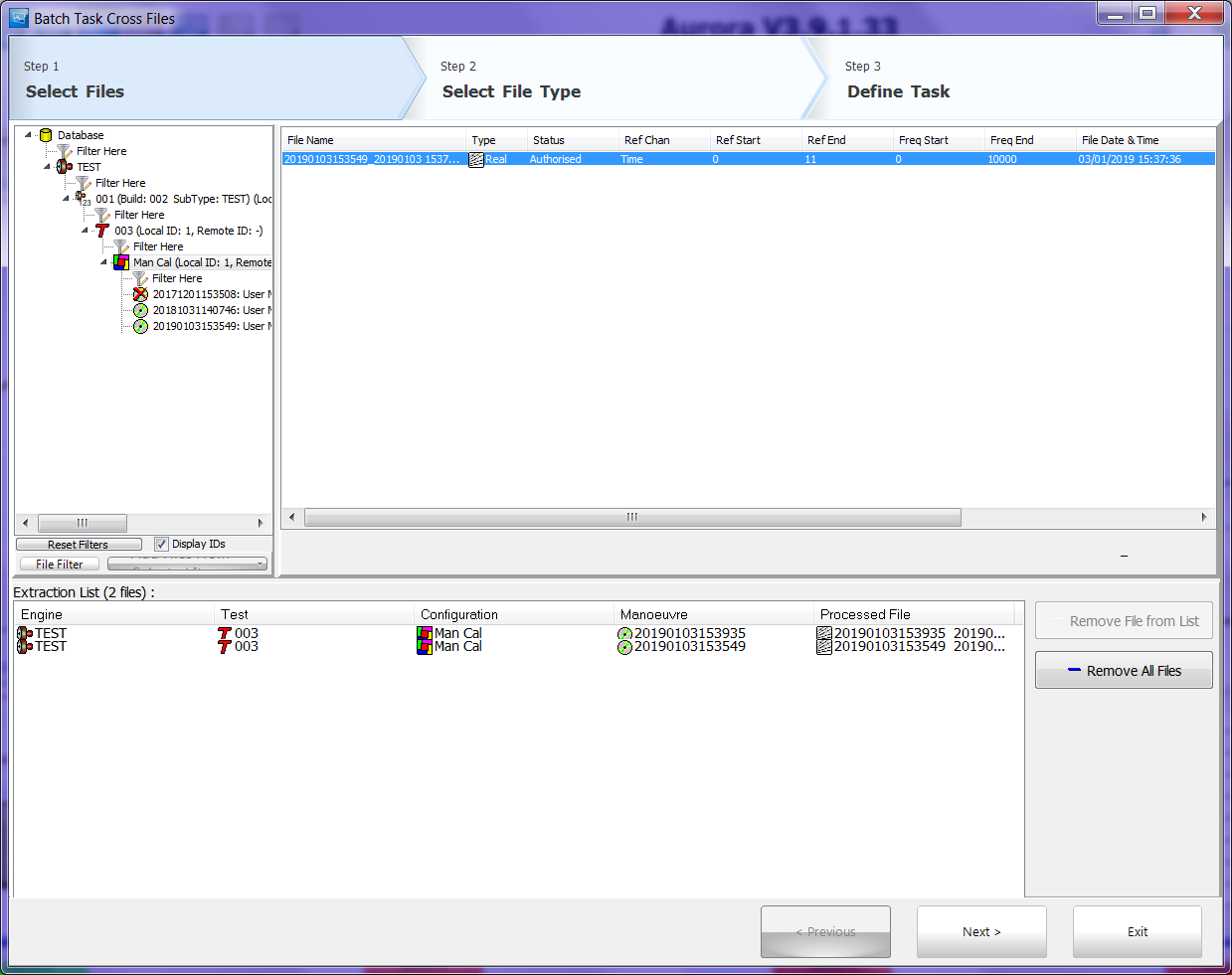
- Navigate the database tree to find the processed file that needs exported
- Once the processed file is highlighted click 'add file'
- To add more recordings to export repeat steps 2 and 3 until all the desired files are selected
- Click Next
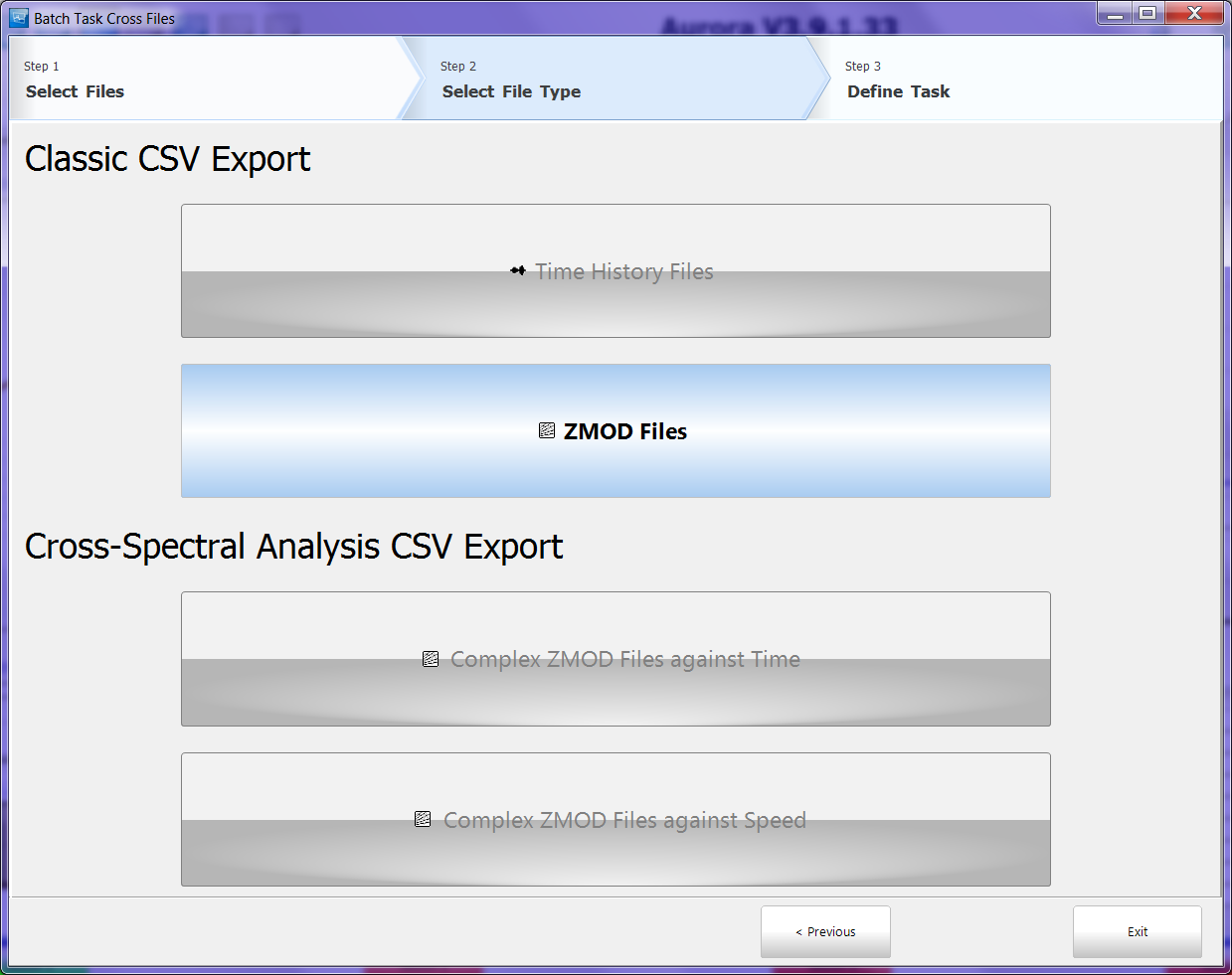
- Select between Classic CSV export and Cross Spectral Analysis CSV Export
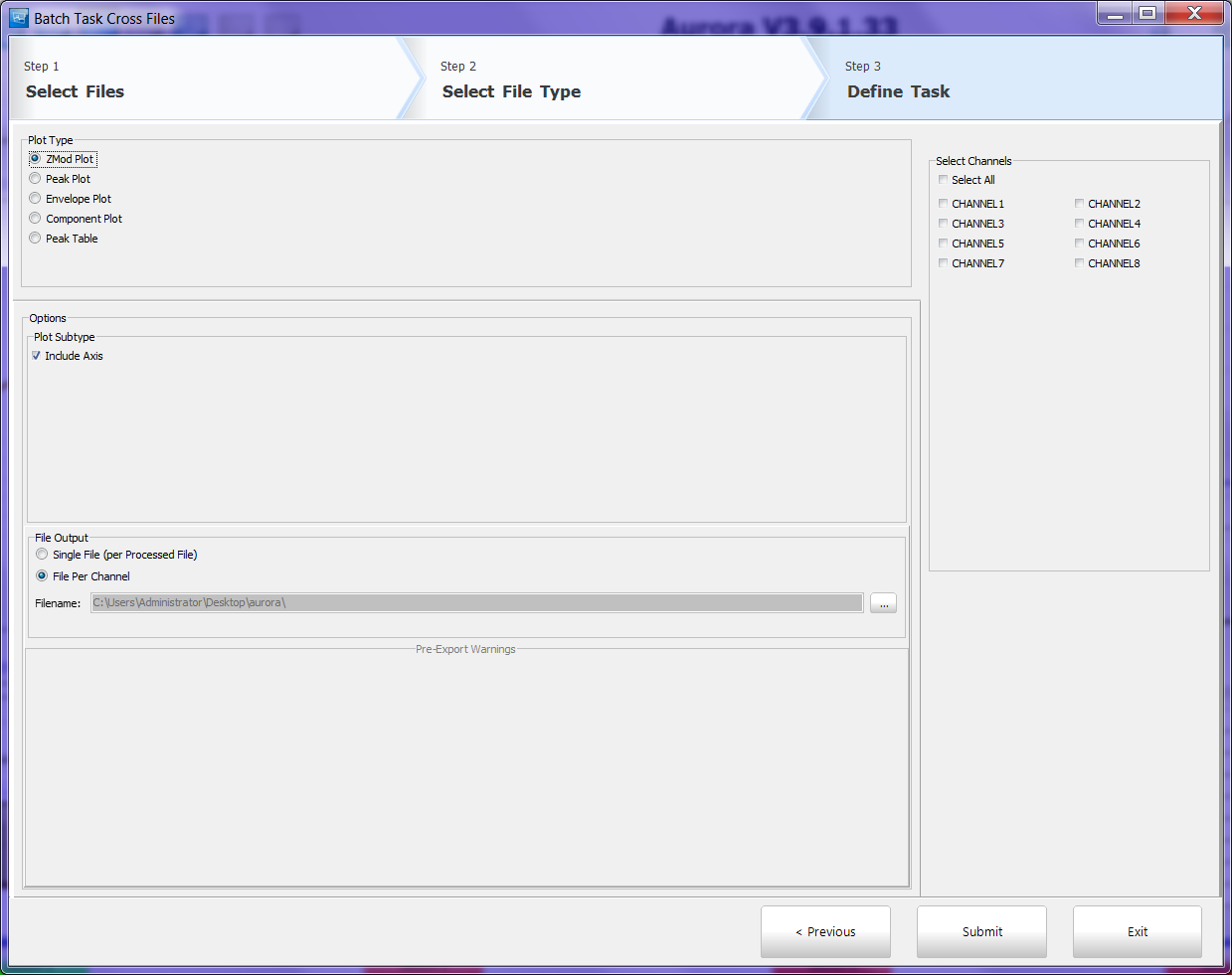
- On the last page fill out the required export specifications (Options are the same as the CSV export above)
- When ready click submit
