
Aurora: Tornado
Tornado is the fourth blue square icon on the menu bar of Aurora Client. Tornado does the post processing of the data, the options for it include rapid processing using the settings you define, or using batch processing using the settings defined from previously setup group maps and proc specs.

Post Processing a Manoeuvre
- Select the Manoeuvre(s) of interest
- Determine processing type
- If using Batch Processing, select the Group Map and Proc Spec
- If using Rapid Processing insert the desired specifications
- Add job to processing queue
- The job will appear in the Processing Queue and will disappear when finished
Manoeuvre Selection

 Access button to Tornado page
- Tornado page
- Processing Queue panel, for seeing progress on processing jobs
- Database tree view
- Processing panel
- Submit job button
 Access button to Tornado page
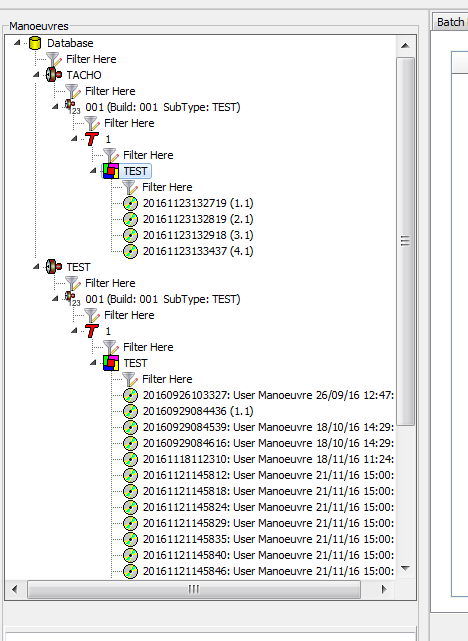
In order to submit a processing job, select the manoeuvre of interest from the database tree view (section 4). The name of the manoeuvre appears in the manoeuvre info box at the bottom of the tree view.
If the user intends to use Batch Processing multiple manoeuvres can be selected by either holding the control key and selecting each manoeuvre of interest or select the first manoeuvre and hold the shift key, click the last manoeuvre of interest, highlighting all manoeuvres in between.
Rapid Processing
The tab Rapid Processing is for setting up processing jobs without having to define a separate Group Map and Proc Spec. It can be very useful if jobs need to be setup quickly, provided that Group Map and Proc Spec traceability is not required. It can also be used for generating Group Maps, as it provides specific information on the channels available for a given manoeuvre.

- Channel selection panel
- Processing Options panel (similar to Proc Spec Editor page)
- For more information on the different processing types click here
- Option for keeping intermediary Group Map and Proc Spec files
Including Channels in Rapid Processing
In the Channel Selection grid, check the box for all the channels to include in the processing.
To include a block of consecutive channels in the grid (consecutive in the order of the column being sorted), do the following:
- Click on the first channel in the block to include
- Then Shift-click on the last one in the block -> all channels between the 2 channels clicked (included) are highlighted
- Then check the box against any one of the highlighted channels -> the boxes of all highlighted channels will behave the same
Example:
 Note: (1) This sign indicates that channels are sorted by Number in ascending order. To change the order, double click the same column. To order channels from a different column, double-click on that other column.
Older Versions
Older Versions of Aurora behave differently when selecting channels, for older versions follow these steps.
- Click on the channel you would like to process or hold the control key and click on multiple channels
- When you have all the channels you would like to process high lighted, right click on one and select include
- Then you may proceed to setting processing specs
Saving Temp Group Map and Proc Spec
When using Rapid Processing a temporary Group Map and Proc Spec are created. Once the Job is completed the Group Map and Proc Spec disappear, unless the box "Generate Permanent GM/PS" is checked. To keep these settings for future processings, do the following:

- Tick box "Generate Permanent GM/PS"
- In the edit box, enter a name, which will be used for both the Group Map and the Proc Spec files. The Group Map and Proc Spec will be available from the Group Map and Proc Spec pages, and from the Batch Processing tab on the Tornado page after you run the associated processing job
- Don't forget to untick the box (or enter a different name) when you run another job, otherwise multiple Group Maps and Proc Specs will be created with the same name.
Batch Processing
The Batch Processing tab is available in the bottom right section. It enables the user to set up a job by simply selecting the appropriate Group Map and Proc Spec from the available lists. Once the Group Map and Proc Spec is selected, submit the job by clicking "Add Job(s)" at the bottom.

- Selected Group Map
- Selected Proc Spec
Running a Processing
For both Rapid Processing and Batch Processing click "Add Job(s)", a new job will appear in the Processing Queue panel, which also displays the progress of the current jobs.
Jobs in the queue will have details displayed such as Group Map/Proc Spec used, who submitted the job, manoeuvre details, and priority. Priority of jobs can be adjusted to make jobs run sooner or later depending on urgency.

Managing Jobs in the Queue
If multiple jobs have been submitted successively, several jobs will appear in the Processing Queue panel. The user can manage the jobs in the queue using the right-hand buttons. To change the priority or delete a job which has been submitted but is not yet running), select it from the job queue, then perform the desired task from the following list:
- Click the up arrow to raise the priority of the job

- Click the down arrow to raise the priority of the job

- Click the hand pointing up to send the job to the top of the priority list

- Click the trash can to delete the job


