
Aurora: Processing Specification
To create a Proc Spec first launch Aurora Client. Proc Spec editor is the third blue square icon in Aurora Client, and is used to define the specifications of how the channel groups will be processed. To run multiple manoeuvres under the same processing specifications a user may wish to create a 'Group Map' and 'Proc Spec' so that these settings don't need to be defined each time.

How to Generate a Proc Spec

- Click 'New Proc Spec'
- Add Channel Groups
- Set Processing Specifications
- Save Proc Spec
Add New Channel Group

- Click "Add New Group". An unnamed channel group appears in the Channel Group section.
- In the Group Processing Options section, give the channel group a name that matches or will match the Group Map being used with this Proc Spec.
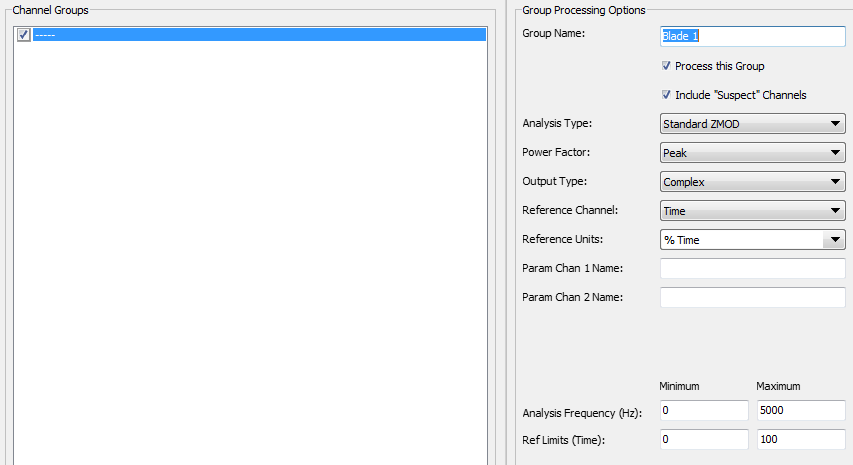
- Then click on the Channel Groups panel to update the change. The unnamed channel group will update to show the new name. The user may enter more than one channel group to your Proc Spec.

Set Processing Specs

1. Option to turn off/on a specific channel groups processing, without needing to delete the channel group or create a different proc spec.
2. Option for including channels marked as suspect in the processing.
3. Provides a list for the user to select the desired analysis type for processing.
4. This section will update to show the parameters which correspond to the selected Analysis Type. For more details, see the Analysis Types. Key details that are submitted include:
- Analysis BANDWIDTH
- Parameter power factor (frequency data only)
- Analysis range (time in seconds or speed range)
- Analysis reference type (% of range or absolute range)
Recommended Settings
| Required Information | Analysis Type | Reference | Output Type |
| Phase Between Channels | Standard ZMOD | Time | Complex |
| High Resolution Frequency | Time History | Time | N/A |
| Engine Order Tracking | Standard ZMOD / Spectrum with Max Peak | Time | Real |
| Campbell | Standard ZMOD / Spectrum with Max Peak | Speed | Real |
Saving Proc Spec
- In the bottom right corner, click "Save As" or click "Save Proc Spec" to over write a previously saved Proc Spec.
- If 'save as' was selected, a window will appear where you can name the Proc Spec.
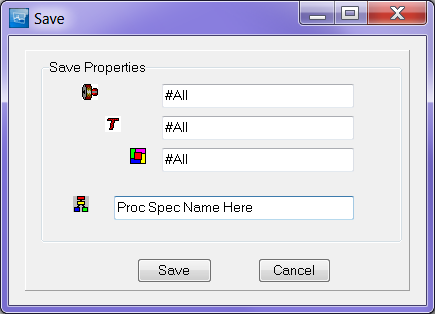
A Proc Spec can be saved at the highest level in the Proc Spec structure, or at a lower level, using the same restriction as for Group Maps. Like Group Map, the Proc Spec tree view is different from the data tree view on other pages. It is not representative of the data. Its structure is built up based upon restrictions (root level, engine, test or config level) entered manually by the user.
Deleting Processing from Proc Spec

- In the Channel Group panel, select the channel group needing deleted. Please bear in mind that multiple processing's can be associated to the same channel group, in which case that channel group will appear multiple times in the Channel Group panel.
- Then Click "Delete Group", the selected item will be removed from the Channel Group panel.
Editing Proc Spec

- In the "Available Proc Spec" sections double click on the Proc Spec needing edited.
- The details will appear to the right, edit them as needed.
- When ready to save, click "Save Proc Spec" to save over the existing Proc Spec, or click "Save as" to save it under a new Proc Spec name.
Loading Proc Spec

- To load an existing Proc Spec, browse the Available Proc Spec tree view.
- Double-click the Proc Spec of interest.
- The Proc Spec details will appear in the Settings panel.