
Obtaining Phase information by Post Processing
First process the manoeuvre as a complex standard ZMOD and reference time as seen below. Be sure to set the power factor to the same power factor used during your Real Time monitoring.

Once the job has been submitted and processed in Tornado, open the Z-Mod file in Aurora Dataviewer.
Next, go to the Cross-Spectral analysis tab.

On this page you will perform a Tracked Comparison using a tachometer and the channel you wish to analyze. Select "Cross-Spectral Type: Tracked Comparison." Set the the tachometer you wish to reference as the "Control" and the channel you wish to analyze as the "Target."
When specifying the EO, there is the option for how tightly the EO will be tracked in terms of number of bins. To tightly follow the EO line, use +/- 1 bin, to better follow the nearest response use +/- 3 bins.
Set the "Track Style" to "Smoothed EU" in order to obtain the proper amplitude. Set the engine order you wish to follow and then click "OK." See example below.
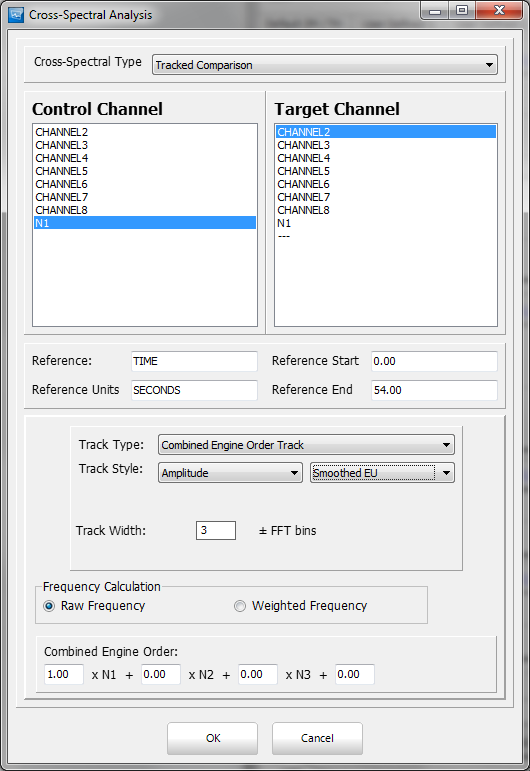
Once the analysis is complete, the screen will show four plots:
- Coherence vs Speed
- Phase vs Speed
- Frequency vs Speed
- Amplitude vs Speed
- Polar plot.
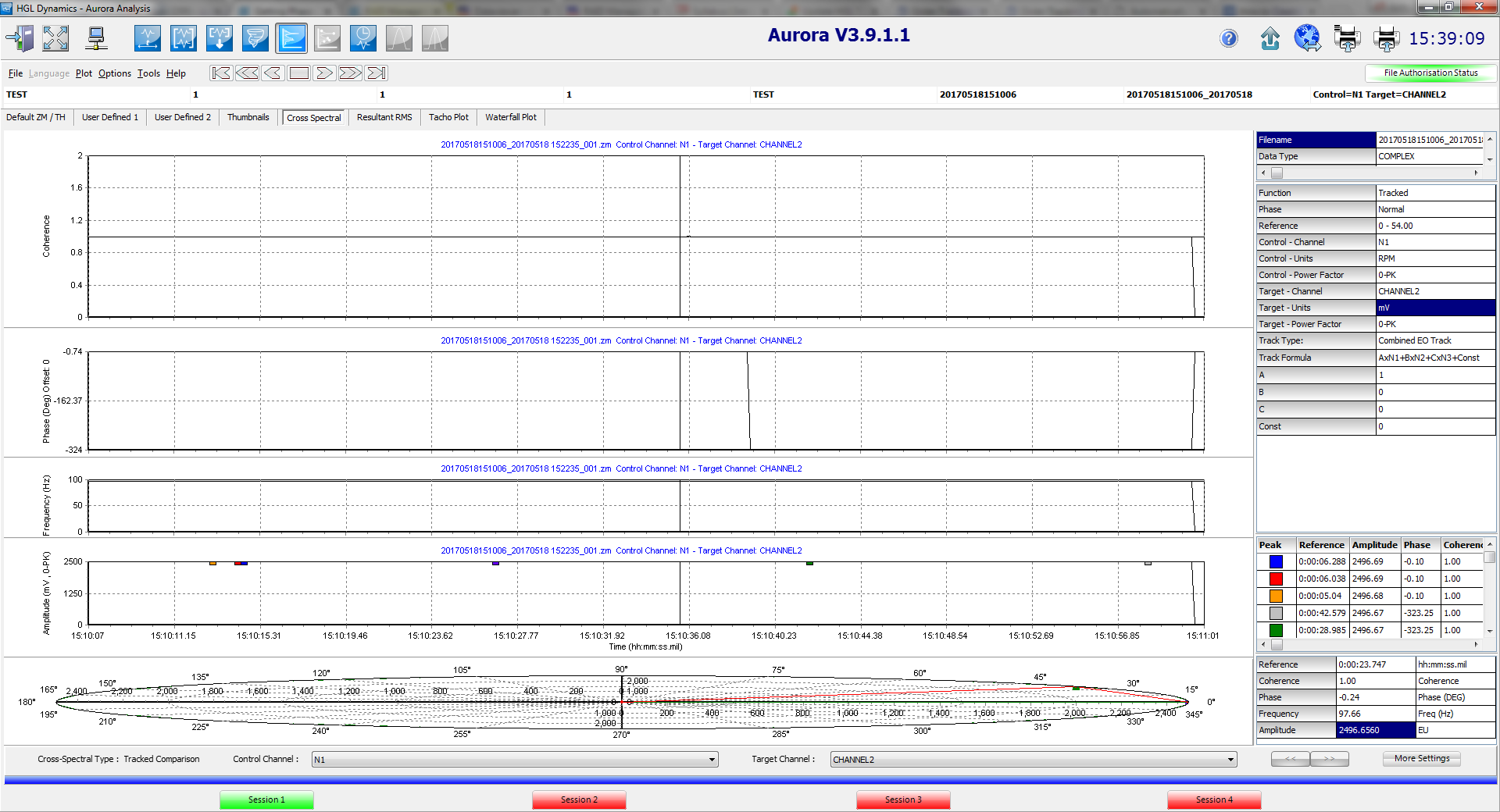 Currently, phase information for the response is best seen on the phase plot, not the polar plot. Amplitude values for the track can be found on the amplitude plot.
As the plots may be a bit difficult to read, obtain the phase and amplitude information you may want to either right-click and export to a CSV or place a cursor on the screen and note the value in the lower right-hand table. If the phase value is negative assume absolute value. Keep in mind that the amplitude you are seeing has a power factor that was defined when you processed it in Tornado and is not impacted by the power settings on the Default ZM/TH Tab in DataViewer.