
Hawkeye: FFT Peak Hold
FFT peak hold is maintained by the safety service, on the whole acquisition bandwidth, and displayed in the FFT instrument, alongside the live FFT. Any zoom or bandshift operation performed by the user on the live FFT does not impact the FFT peak-hold, as it comes from a different FFT calculation.
The size of the FFT computed by the safety service is configurable in the Hawk GUI preferences:
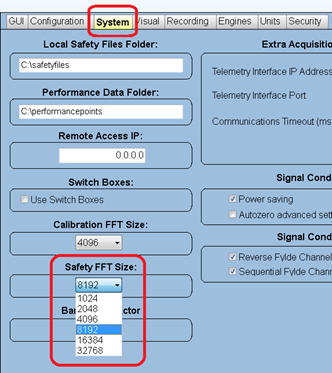
The live FFT and FFT peak-hold may have different sizes; therefore the user may observe that they do not exactly match.
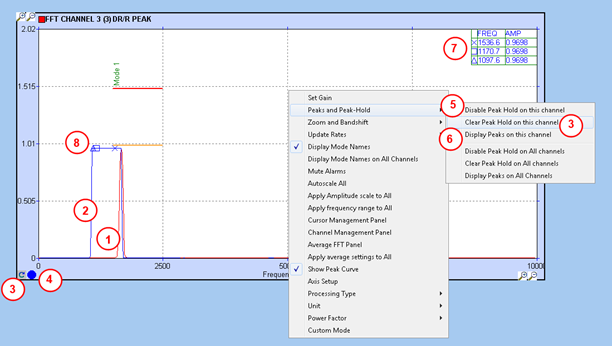
- The live trace (1K FFT from FFT service)
- The FFT peak-hold trace
- 2 ways of resetting the peak-hold trace
- The blue dot shows that FFT peak-hold is displayed
- To turn on/off FFT peak hold
- Option to display the peak table in the top right corner (7)
- Peak table: look for the highest peaks on the peak-hold trace if it is active, otherwise works on the live trace. The number of peaks displayed is configurable in the settings panels (see Figure 152).
- The peaks symbols are displayed on the graph, at their frequency / amplitude.
Note that the FFT peak-hold is not available on SPEED, IRIG or SPEECH channels.
IMPORTANT: The safety service maintains one FFT peak-hold per channel, so clearing the FFT peak hold for a given channel from one instrument will affect any instrument (possibly on another screen, or even on another computer) displaying the FFT peak hold on the same channel.
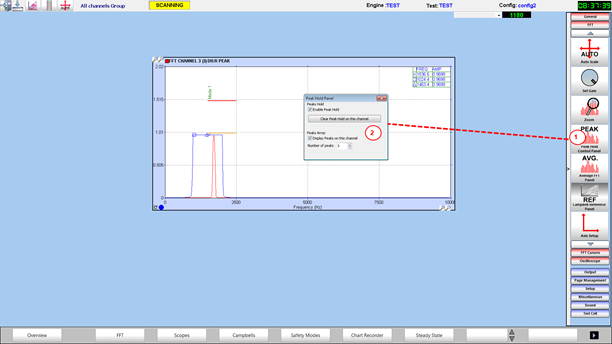
- In the settings panel, click on the “PEAK” button.
- The peak-hold panel shows up. From there, user can show / hide / change the number of peaks in the peak table, show / hide / clear the peak-hold trace.