
Aurora Connection Manager
Aurora's Connection Manager can be used to resolve connection issues to the servers, set servers to offline, or to change the location of the servers Aurora is using to local or remote servers.
To open Aurora Connection Manager click the connect button in Aurora.

A window will appear where the user typically logs in, to manage Aurora's connection click the 'Advanced' button.

The Connection Manager Screen will expand and show all the Aurora processes. Each tab shows the IP address (where Aurora Client is looking for the process to connect to), ports that the process uses, and data paths where files are saved.
Local - The local button changes the IP address to the Green IP of the machine being used
Work Offline - Work offline is a way to disable the connection to a service in which the machine running Aurora Client can't see over the network.

RemoteDB is an exception in which it has 2 Different IP Addresses. One of these is the Primary DB which is the Remote DB the system accesses regularly. The other Remote DB address is for if the system is taken offsite and setup to connect to a Field Hercules/Torcules. 
Save Connection Manager Configuration
Another option for the user is to save the configuration for the Connection Manager. To save a connection manager config perform the following actions.
- Set each servers IP addresses and ports
- In the lower left hand corner click 'Save Config'
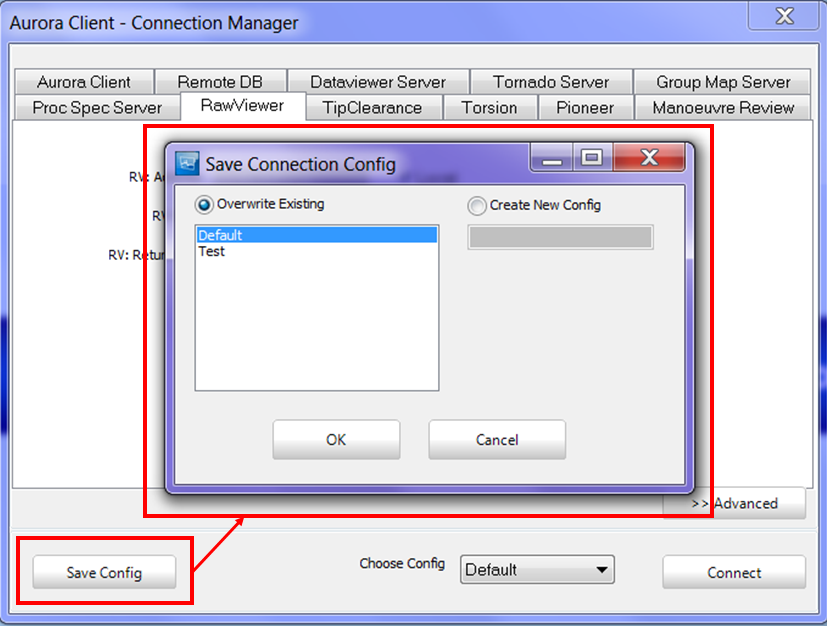
- A new window will pop up, in this menu the user can chose to overwrite an existing config or to create a new config
- Once you hit Ok to save the window will close
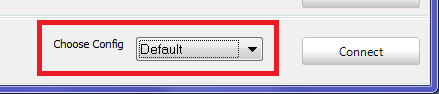
- Before clicking connect be sure to select the desired config from the 'Choose Config' drop down
Load Connection Manager Configuration
A configuration can be loaded without having to use the advanced button by clicking on 'Choose Config' and selecting the desired config from the drop down. Then clicking 'Connect'

To edit a previously saved config use the advanced button then select the config by selecting the desired config from the 'Choose Config' drop down. Be sure to save the config when finished.