
Hawkeye: Export Realtime Data
It is possible to export to CSV / JPEG the data displayed in the FFT instrument:
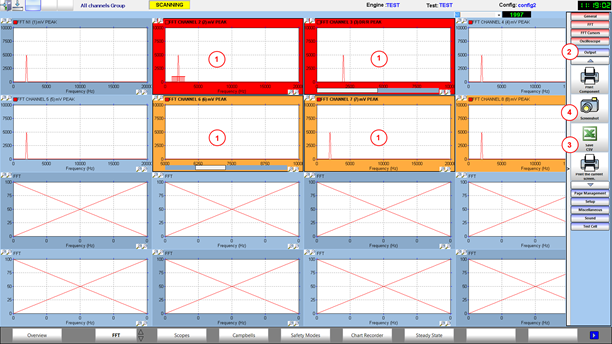
- Select one instrument or multiple ones (using ctrl-click)
- Open the Output section of the settings panel
- Save to CSV
- Save to JPEG
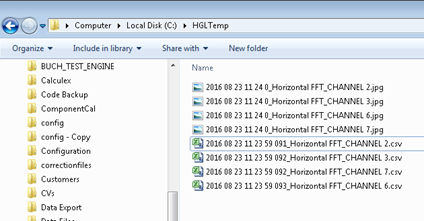
One JPEG file per instrument will be generated, in the output folder directory specified in the HawkEye preferences.
One CSV file per channel per instrument will be generated (in case multiple channels are displayed in the same instrument):
To help capture the data of interest, the user may want to “pause” the instrument before exporting the data. That will prevent the instrument to refresh, until it is “un-paused”.
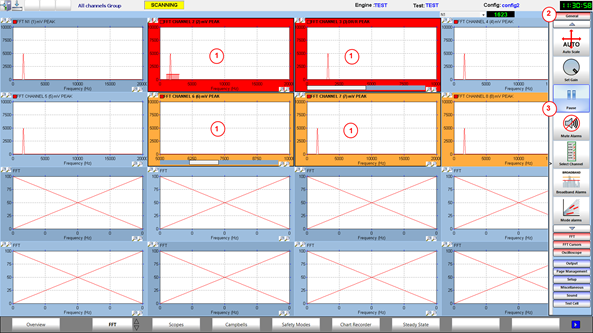
- Select one instrument or multiple ones (using ctrl-click)
- Open the general section of the settings panel
- Click on the PAUSE button
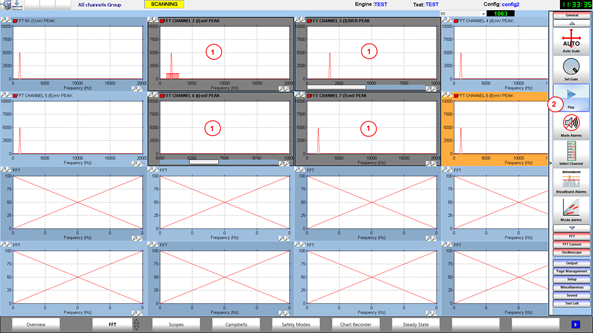
- The selected instruments are now frozen, with a grey background
- Click on the play button to un-pause the selected instruments