
HGL Data Transporter
The HGL software is designed to keep as many copies of data available as possible and only deletes data off disk when the data is archived onto tape or external media and the disk is full. This protects against data being lost. Data Transporter is archival tool that looks for connected media in the drive letter range specified in the ini file. It can be setup to archive all data onto the removable drive automatically or in manual mode it will wait for the user to select what data to archive.
HGL Data Transporter builds and manages an index file (.idx) on the media and moves the data being archived into a folder named "HGL_DATA" on the removable disk. The HGL_DATA folder on the removable disk encapsulates the index file and all data, this can be safely copied to another location for backup. Once the data is moved onto the removable disk the software informs the database that the files are archived. The database is used by disk controller when space needs to be made it will look for archived files as they are now safe to delete off the disk.
The files on the removable disk can be moved to another system with Data Transporter for post processing or for Hercules archiving. The files are not imported onto the new systems disk, they will reside on the removable disk and only accessible while the drive is connected. If the system is equipped with a Hercules the data will be transferred to disk then archived to tape.
Managing HGL Data Stored on Transport Media
All archived HGL Data is encapsulated in the "HGL_DATA" and includes the necessary Index (*.idx) file. The index file and all of the data files need to be kept together for proper operation.

Only launch HGL Data Transporter on the archiving machine if it is necessary to review the data. If HGL Data Transporter is launched, then the data on the Transport media will be added to the local system's database. If the only task is to copy the "HGL_DATA" folder to a permanent location, simply attach the Transport Media disk (removable disk) to the computer system and copy the "HGL_DATA" folder to the secure location. It is now safe to blank the Transport Media disk to use for other test data.
Backup To A Secure Location
- Copy the "HGL_DATA" folder and its contents to the backup location, such as a NAS. Append the "HGL_DATA" by adding the date or description to the "HGL_DATA" folder name (e.g. HGL_DATA_20YYMMDD).
- Verify that all the files have been safely copied.
- Delete the "HGL_DATA" folder on the transport media.
Make A Second Archive on the Transport Media
It is possible to have multiple dedicated backups on a single Transport Media. The HGL Software is looking for a folder named "HGL_DATA" and if one does not exist, then the software will consider any external disk as a blank archive media.
- Browse to the removable disk.
- Rename the "HGL_DATA" folder on the Transport Media to one that is memorable, e.g. "HGL_DATA_VIBRATION_TEST".
- The Transport Media is now considered blank by the HGL's Hercules and Data Transporter software.

Restoring Data Backups to Transport Media
- Find the data to be restored.
- Make sure that there is not an existing "HGL_DATA" folder on the removable drive.
- Copy the data folder to the blank removable disk.
- Rename, or verify, the data folder to "HGL_DATA" and that it contains an index (*.idx) file and "Data Files" folder.
- Connect the removable disk to an HGL System with Data Transporter and use Aurora to view old recorded data or Hawk GUI to replay data.
Setup HGL Data Transporter Configuration File

Locate the HGLDataTransporter.ini file in C:\HGL Software\ open the file with notepad to edit its configuration
- StartDriveLetter= - set this to be the first letter that a removable disk would use
- StopDriveLetter= - set this to be the last letter the removable disk would use if the drive will always be in one spot this can match the start drive letter
- TreatUnauthorisedAsNonArchived=1 - Leave as 1
- DeleteXMLFiles=1 - Leave as 1
- ArchiveThrottleMs=1000 - Leave as 1000, this is the delay before transfers start
- CopyFileNoCache=1 - Leave as 1
- ManualMode=
- 1 for Manual mode, user has to select the data that will be archived
- 0 for Automatic mode, all data will be archived to the removable disk
- Database
- ServerAddress= - IP address of the machine running Remote DB
- ServerPort= - Port that RemoteDB uses (always 20000)
- Network
- ListenAddress= - IP address of the machine running Data Transporter
- ListenPort= - Port that Data Transporter listens over (always 50600)
Launching Data Transporter
Launch HGL Data Transporter from the HGL Software folder (if it is not set to auto launch in the software), RemoteDB is required to run HGL Data Transporter.
When launched HGL Data Transporter will ask the user to connect to a Test Cell. 
Once a test cell is selected, the user will be asked to login 
After logging in the user database tree will become active

- Pending and running job status
- Database Tree
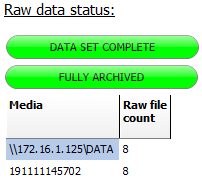
- Raw Data Status - Only shown when a segment or manoeuvre is highlighted
- Archive Button
- Connected Drive Status
How to archive data (Manual Mode)

- Use the database tree to navigate to the data needing to be archived, the user may archive by highlighting;
- Configuration - archives every recording, segment, and manoeuvre under contained in the configuration

- Recording - archives every segment and manoeuvre under contained in the recording

- Segment - archives every manoeuvre under contained in the segment

- Manoeuvre - archives only the selected manoeuvre

- Configuration - archives every recording, segment, and manoeuvre under contained in the configuration
- Once the desired data is selected the 'Archive!' button can be selected
- A window will appear asking for the target disk to be selected

- Once 'OK' has been selected the status at the top of Data Transporter will show 1 Job Running and on the right a spinning wheel icon shows the program has activity
 At the bottom of Data Transporter the archiving progress will be shown
- Once the archiving is finished the 'Raw Data Status' will show 'Fully Archived'


 At the bottom of Data Transporter the archiving progress will be shown
Archiving Data (Automatic Mode)
- Launch HGL Data Transporter
- Select a Test Cell
- Connect a removable disk that the files will archive to
- Data Transporter will automatically transfer all unarchived data