
Data Export Server
Data Export Server allows the user to export data into different formats. As of version 3.9.0.15 the export options include; Datx, Edas, Matlab, Wav, HGL Simplified Binary, Raw, Dragonfly CSV, CSV (CSV was not an option prior to 3.9.0.15)
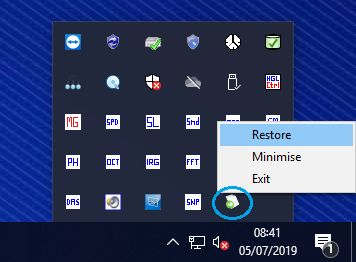
To open Data Export Server click on the up arrow to show hidden icons and right click on the Data Export Server icon and select restore. If Data Export Server is not set to auto launch navigate to the C:\HGL Software directory and double click on DataExportServer.ini, it should be noted that when this program is launched it will minimize itself into the system tray. If a second instance of Data Export Server is launched, it will not minimize if the user tries to use this instance of the application it will lock up and crash.
Export Options
 Before exporting data, the Export Settings need to be defined.
Clicking on the 'Export Settings' button brings up options for the export. First option is what components are in the filename, the arrows can be used to add or remove what components make up the file name as well as the order they are in. The user text field gives the option to add text to all the channels file names based on their requirements. An example output shows what the format will look like when exported.
In the bottom of the window sets the folder the exported files will go to. The option for 'Insert Exported Files to Database' is used for systems that have archiving capabilities.
Exporting Data
With the Data Export Server screen now up and the export settings set, navigate the database tree and find the manoeuvre needing exported. Clicking on the manoeuvre will highlight it blue. Next we will select what channels to export.
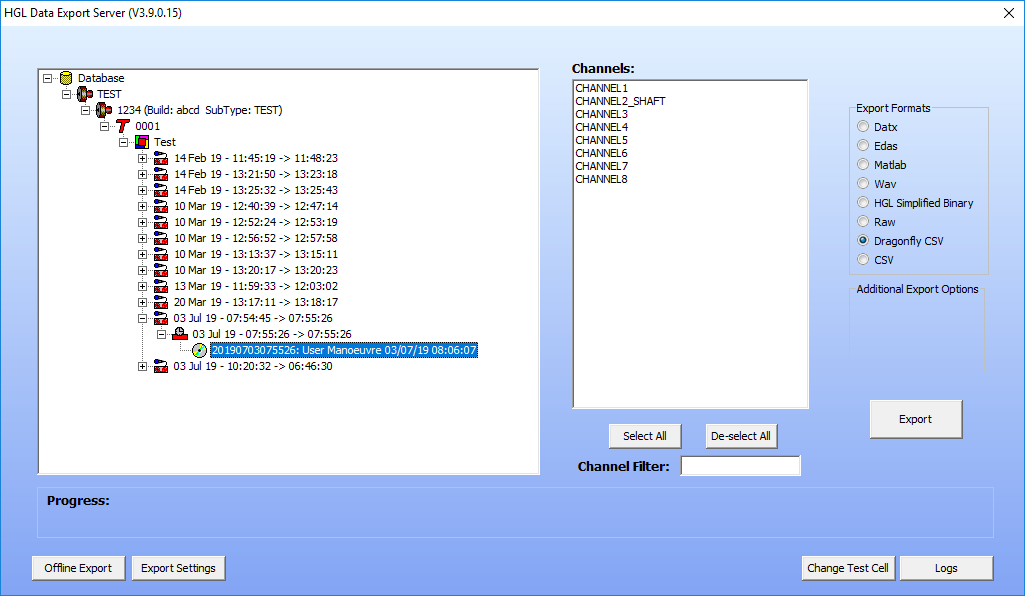
There are multiple ways to select the channels for export. The 'Select All' button may be used to highlight all the channels in the list, 'Deselect All' may be used to deselect all the channels. The Channel Filter text box will filter the channels by the text entered. It is also possible to left click and drag to select many channels or hold control and left click on the desired channels. Once the channels are selected an export format needs to be chosen.
 Export Options - depending on the format selected additional options may be available.
- Datx
- Max Datx Time (in minutes)
- Edas
- AEDC Export (a format used by AEDC)
- Matlab
- Multiplexed - puts all the channels into one file, left unchecked does file per channel
- Wav
- Multiplexed - puts all the channels into one file, left unchecked does file per channel
- LMS Wav
- HGL Simplified Binary
- Raw
- Dragonfly CSV
- CSV
- Multiplexed - puts all the channels into one csv, left unchecked does file per channel
Once the desired channels and format are select, click 'Export'. A progress bar will appear at the bottom. Once completed the files will be in the export folder.
Change Test Cell
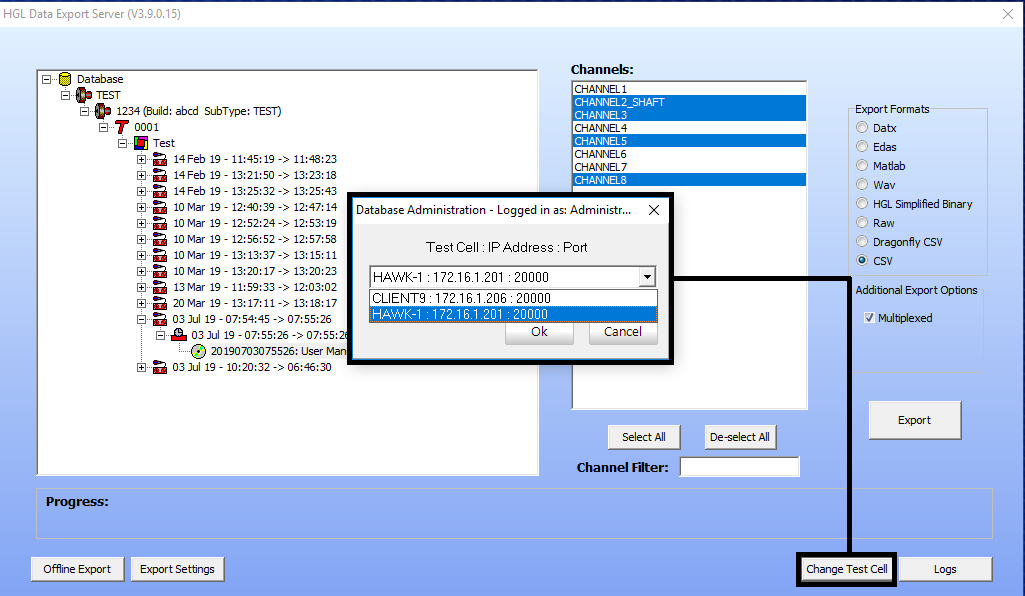
The change test cells button, controls what database Data Export Server connects to. This feature will be most commonly used in remote data systems where it will often connect to its own database or sometimes connect to the database of the Hercules it transfers to. Select the test cell you would like to connect to from the drop down and hit 'ok'
Offline Export
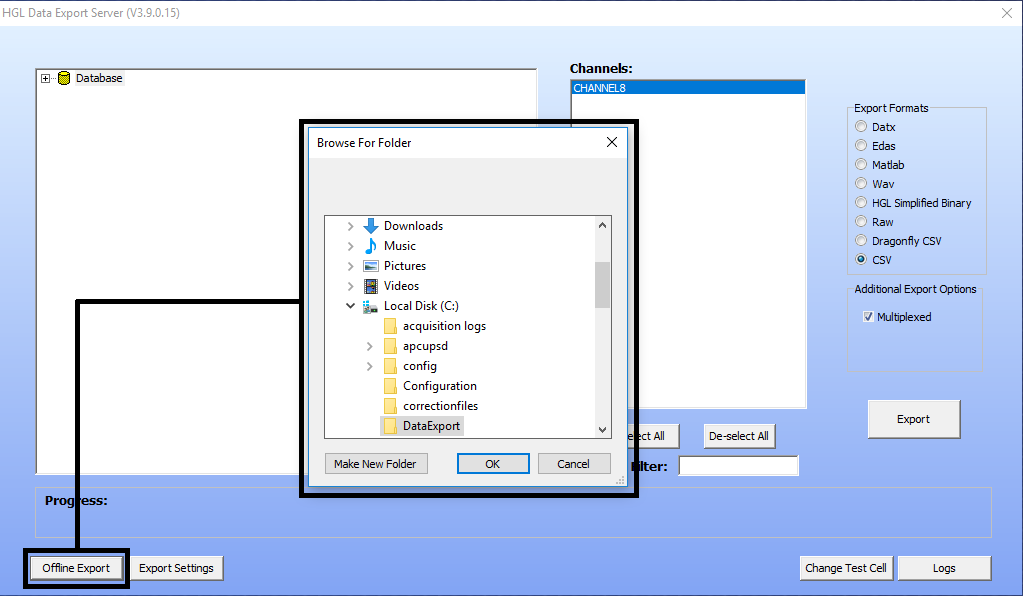
Offline export allows for data to be exported into a different format, without the software running or any recollection of the database. When offline export is selected a pop up will appear asking to be directed to a folder where data files exists, the selected folder should be a smaller folder with the collected data of interest. Directing it to the Data files folder could take a long time to load due to the software not looking at the database but instead having to look at every data file and organizing it by engine, test, config, etc.
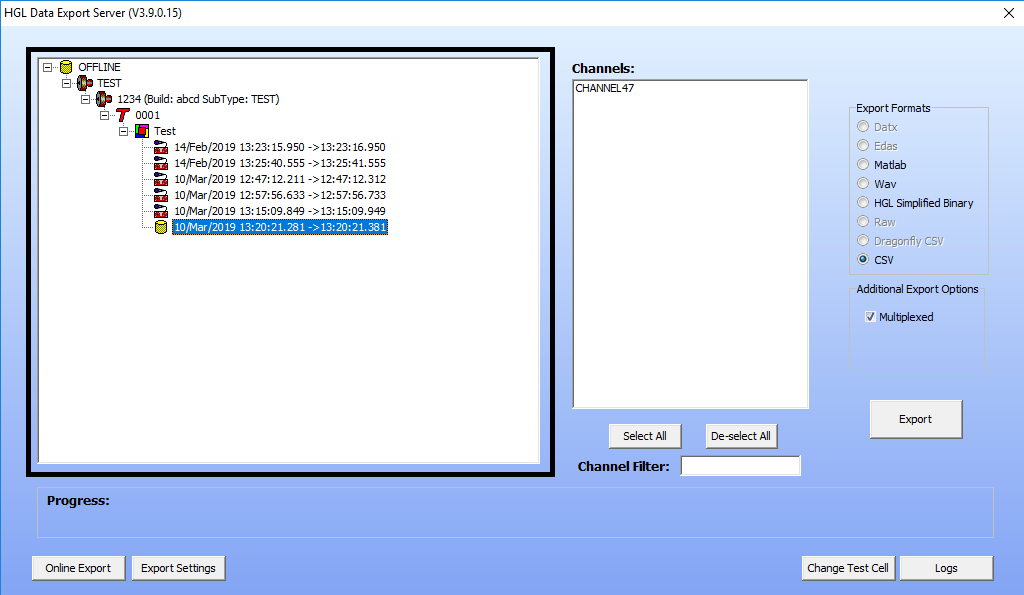
Once the folder is selected the database tree view will populate with OFFLINE and the typical database structure will be seen for the contents of the selected folder. From here Data Export Server operates how it would in the previous section, where the next steps are to select channels, export format, then select format.