
Hawkeye: Audio Monitoring
In testing situations it may be useful to listen to the output of a channel that is being recorded. The audio is output to the built in speakers of the computer running the Hawkeye Client software.
- Select the Overview button from the Hawkeye RT Monitoring screen. This is the left most button on the Hawkeye screen and can be optionally viewed in the "Alarm View" mode.

- In the bottom left panel of the Overview page, select the 'Sound' tab.
- Left click on a channel name listed on the Channel Bar Graph seen in section 1 above.
- On the plot in section 2, left click in the blank space to either the left or right of the green bar to assign the selected channel to be routed to the desired stereo output.
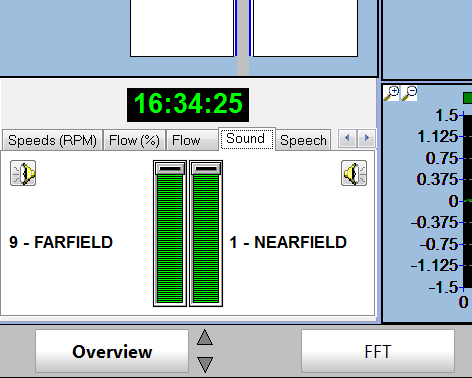
- Two different channels can be monitored simultaneously and changed at any time, just like with the other monitoring plots on the Overview page.
- For Mono output, assign the same channel to both the left and right side of the green bar.
The audio controls allow for the volume of the left and right sides to be changed independently and clicking the speaker icon will mute the sound from that channel.
The audio output will have a slight delay.