
Verify Ethernet Connection
If the correct ethernet cables are not connected you may run into a variety of problems. E.g. software not launching, unable to see/add devices, unable to scan, etc.
In this case you should first check the ethernet connection. The first step is to open the network and sharing center, rather than checking for physical cables because you never know when a cable or switch is broken. To get to this page, open the Start Menu: And right click on "Network" and select "Properties.
 Select "Change Adapter Settings"
 At this point you will be able to see all networks connected or not.
Machines will have a variety of networks - for HGL machines it might include GREEN, RED, BLACK, and/or BLUE. These networks will need to be connected correctly to be able to run the software. The BLACK network must connect to the acquisition device(s), while the others need to be able to communicate with any other HGL unit that has a corresponding network name. E.g. you might have three machines with a Green network, therefore all three machines need to have a connection running from the Green network port to a switch.
Connected:
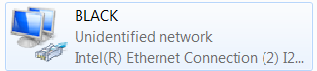
Not connected: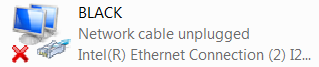
If any of the above listed networks are disconnected, ensure they are connected and restart the HGL Software. If you already have an ethernet cable running to that port it may mean either the ethernet cable is bad, or the switch is bad.
You can check if you can communicate with other HGL units by opening a command prompt and typing "ping ###.###.###.###" where ### represents the numbers for the IP Address of the machine you are trying to communicate with.